Getting started
What is Ordops?
Ordops is an all-in-one business management platform for contractors, tradespeople, and construction companies.
From a single workspace, you can:
- Manage projects and customers
- Plan and schedule work
- Create and assign tasks
- Track working hours
- Register expenses and scan receipts
- Create quotes and invoices
- Monitor business finances
- Find subcontractors or outsource work through the Resource Board
- Manage your team and workload
The Dashboard provides a quick overview of your business, including monthly profit, today's schedule, and items that require attention.
New accounts start with a free trial, allowing you to explore all features before choosing a subscription plan.
What are the first things I should do?
Before creating projects, quotes, or invoices, complete your Company Profile in Settings. This ensures that all customer-facing documents and communications contain the correct business information.
We recommend completing:
- Company name
- Company logo
- Chamber of Commerce number
- VAT number
- IBAN / bank account details
- Company address
- Website
- Default VAT percentage
- Quote validity period
You should also review and customize your Quote Terms & Conditions. These terms are automatically included in your quote PDFs and help set clear expectations with customers.
To get the most value from Ordops, we also recommend connecting your work or personal calendar (such as Outlook or Google Calendar). This enables smarter planning, more accurate availability checks, better team scheduling, and helps prevent double bookings. When calendars are connected, Ordops can take existing appointments and commitments into account when planning work.
Once your company profile is complete and your calendar is connected, Ordops can automatically use this information across quotes, invoices, emails, planning, and scheduling, helping you maintain a professional and efficient workflow from day one.
How do I find my way around?
Ordops uses three navigation methods that work together to help you quickly access the features you use most.
Bottom Navigation Bar
On mobile devices, the bottom navigation bar provides one tap access to the most frequently used areas:
- Dashboard
- Planning
- Hours
- Resource Board
- Expenses
Side Menu
Tap the hamburger menu in the top left corner to open the full navigation menu.
From here you can access all modules, including:
- Dashboard
- Projects
- Planning
- Tasks
- Quotes
- Invoices
- Hours
- Expenses
- Resource Board
- Financials
You can also access:
- Team
- Settings
- Help & FAQ
At the bottom of the menu, you will find your trial status, subscription options, and account information.
Quick Create (+) Button
The blue + button in the bottom right corner is the fastest way to create and register information in Ordops.
It opens the Quick Create menu with shortcuts to:
- New Task
- Clock In
- Scan Receipt
- New Quote
- New Invoice
- New Project
Together, the bottom navigation, side menu, and Quick Create button give you fast access to every part of Ordops from anywhere in the app.
Where do I land when I log in?
After logging in, you arrive on the Dashboard.
The Dashboard gives you an instant overview of your business and highlights the most important information for the day, including:
- Profit this month
- Total projects, active tasks, and open quotes
- Recent projects and their status
- An Attention section showing items that require action, such as expiring quotes or unassigned tasks
- Open quotes awaiting follow-up
- Upcoming scheduled tasks
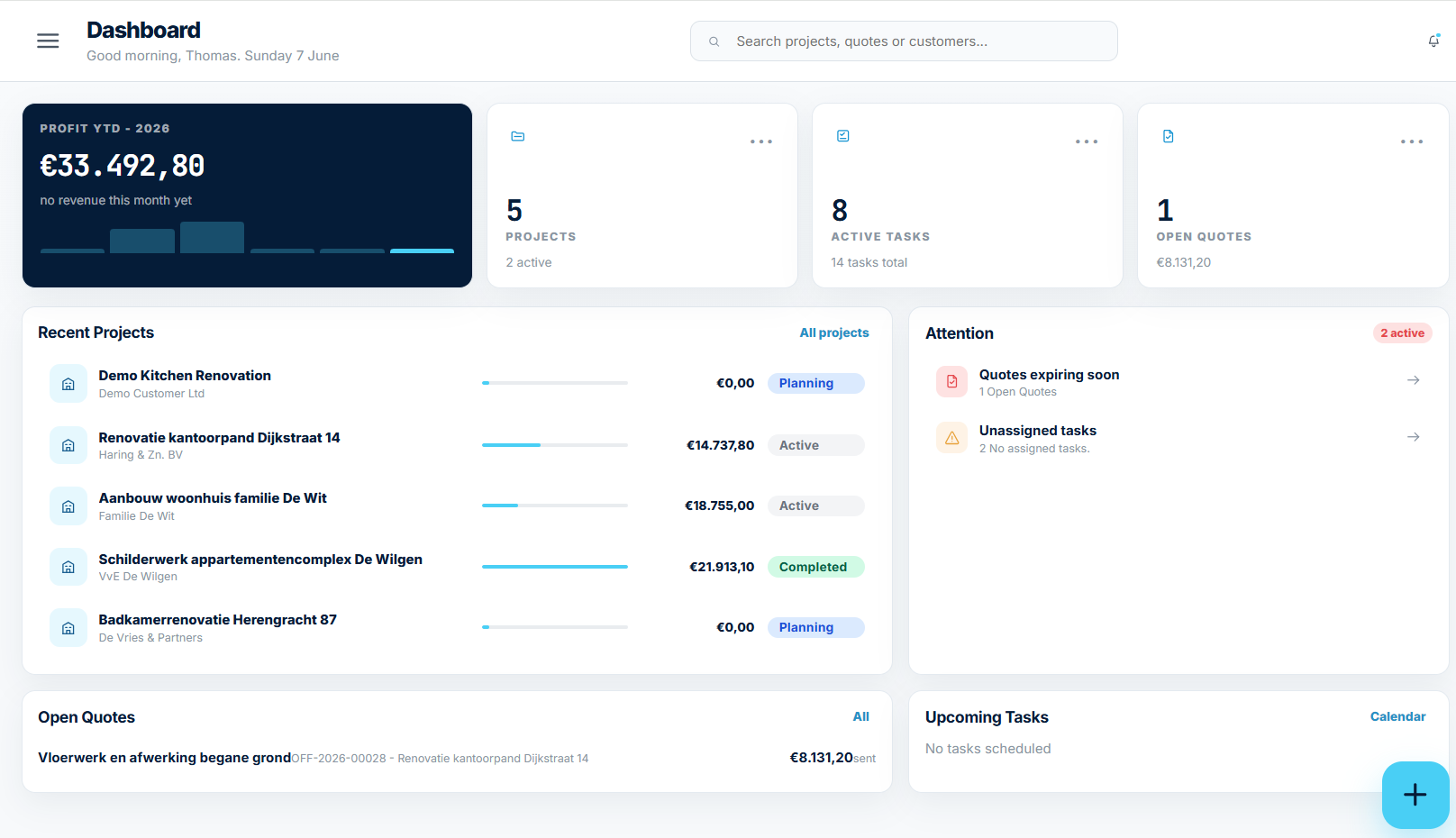
From the Dashboard, you can quickly navigate to your projects, tasks, quotes, invoices, planning, and other key areas of Ordops. It serves as your central workspace and starting point each time you log in.
General
Is there an app available?
Ordops is focused on mobile usage, and the web app offers a similar experience to a native app. You can add the website to your home screen to launch it just like a regular app:
- Android: Open the website in Chrome, tap the three-dot menu in the top right corner, and select "Add to Home screen."
- iOS: Open the website in Safari, tap the Share button at the bottom of the screen, and select "Add to Home Screen."
Can I see quotes, invoices, expenses, and receipts per project?
Yes. Each project's detail page includes dedicated Quotes, Invoices, Expenses, and Receipts tabs, showing only the documents related to that project.
You can easily track project profitability, review outstanding invoices, compare approved quotes, and manage all project-related expenses in one place. VAT is automatically tracked and included where applicable.
Quotes & invoices
How do I create an invoice?
There are three ways to create an invoice in Ordops:
Option 1: Use the Quick Create (+) button
- Tap the floating + button.
- Select New Invoice.
- Choose the project.
- If the project has existing quotes, you can create the invoice based on a quote or start from scratch.
- Select whether the invoice is a Partial Invoice or a Final Invoice.
- Review the line items and save or send the invoice.
Option 2: Create an invoice from a project
- Open the project.
- Navigate to the Invoices tab.
- Select New Invoice.
- Choose a quote (if available) or create the invoice manually.
- Complete the invoice and save or send it.
Option 3: Create an invoice from the Invoices module
- Open Invoices.
- Select New Invoice.
- Choose the project.
- Create the invoice from an existing quote or from scratch.
- Select Partial Invoice or Final Invoice and complete the invoice.
All invoices are linked to a project, allowing you to track quotes, invoices, expenses, and profitability in one place.
How do I create a quote?
Use the floating + button and select New Quote. You can create a quote from an existing project or start with a blank quote.
You can also create a quote directly from the Quotes page.
Once a quote is accepted, it can be converted into an invoice.
How do I log an expense or scan a receipt?
Open Expenses and tap Register Expense, or use the quick-capture categories: Equipment, Vehicle, Office, and Insurance.
To photograph a receipt or import an invoice, use the floating + button and select Scan Receipt.
After scanning or importing, review and validate the extracted information before saving. This ensures that supplier details, dates, amounts, and VAT are captured correctly.
Deductible VAT is tracked automatically and applied to your expense records.
Navigation
How do I navigate the app?
Use the side menu (hamburger icon in the top left corner) to access all modules, view your trial status, and manage your profile.
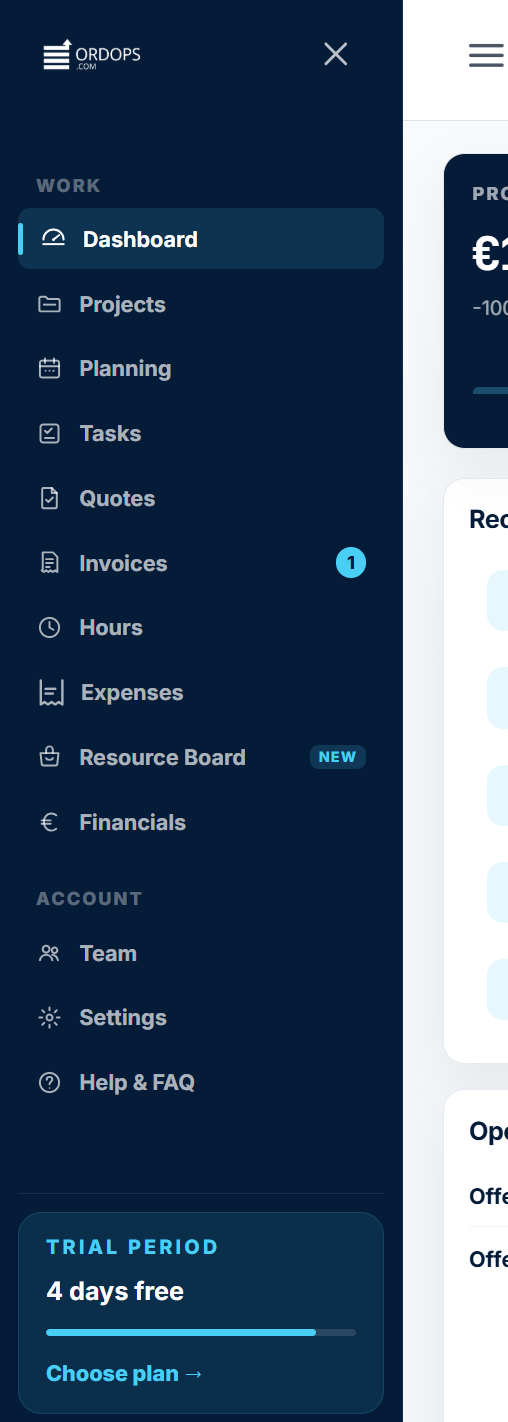
From the side menu, you can access work-related modules such as:
- Dashboard
- Projects
- Planning
- Tasks
- Quotes
- Invoices
- Hours
- Expenses
- Resource Board
- Financials
You can also access account-related sections including:
- Team
- Settings
- FAQ
In addition, the floating + button provides quick access to the most frequently used actions in the app, such as creating a project, quote, invoice, task, or expense.
This gives you quick access to all core features from anywhere in the app.
What is in the bottom bar?
On mobile devices, a bottom navigation bar provides quick thumb access to the most frequently used areas:
- Start (Dashboard)
- Planning
- Hours
- Resource Board
- Expenses

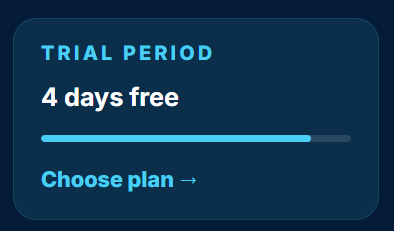
Where can I see my remaining trial time?
Open the side menu and scroll to the bottom.
There you will find your trial banner, showing the number of days remaining in your trial period. You can also select Choose Plan to upgrade your subscription at any time.
Below the trial banner, you will see your account information, including your name and email address.
Planning
Can I share my project planning with the customer?
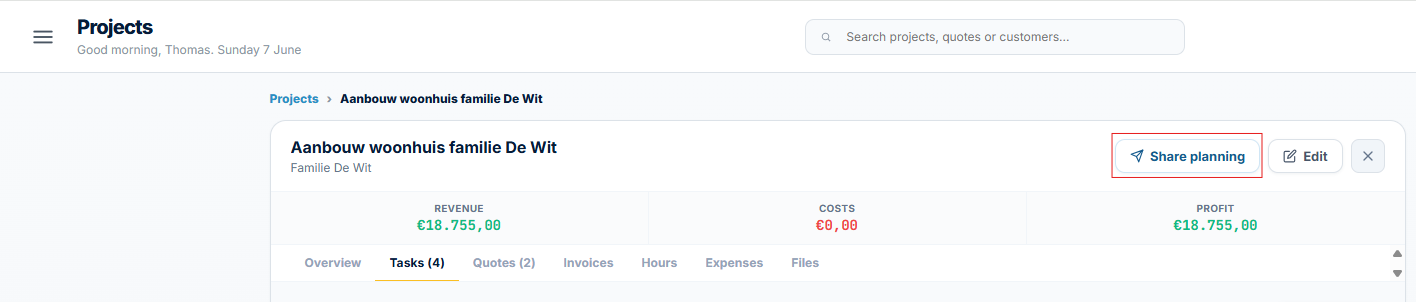
Yes. Ordops allows you to share the project planning with your customer, helping reduce communication, avoid misunderstandings, and keep everyone informed about upcoming work.
To share a planning:
- Open the project.
- Select Share Planning.
- Review the customer's email address, subject, and message.
- Select Send Planning.
The customer receives a secure link that allows them to view the current planning. They can see:
- Upcoming scheduled work
- Planned arrival dates and times
- Project progress
- Future activities and milestones
The shared planning is view-only, so customers cannot make changes.
By sharing your planning, customers stay informed without needing to call or email for updates, reducing administrative work and improving transparency throughout the project.
How do I view my schedule?
Open Planning to view and manage your schedule.
You can switch between Calendar and Gantt views, choose a Day, Week, or Month layout, filter by project, and toggle between My Planning and Team Planning.
How do I track time?
Open Hours and select the project you are working on. You can also link your time entry to a specific task if needed.
To track work in real time, press Start Timer. When you finish, stop the timer and your hours will be recorded automatically. You can review your entries in the Recent Hours section.
If you need to account for a break, open the time entry and add the break duration in minutes.
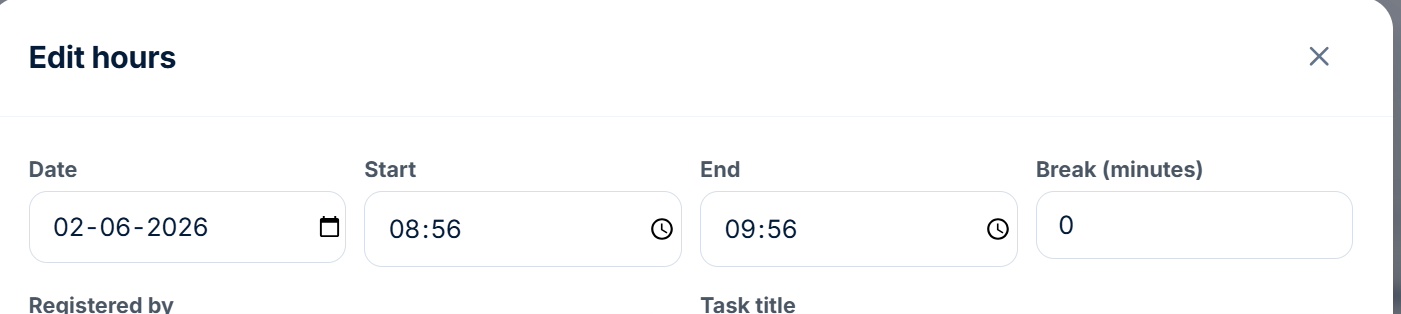
To log work you have already completed, select Add Manually and enter the date, start time, and end time.
Your total logged hours for today are displayed at the top of the page.
Can I clock in straight from the + button?
Yes. Tap the floating + button and select Clock In.
This will take you directly to the Hours page, where you can start the timer, select a project and task, or manually log time.
Quick create
What can I create from the + button?
The floating + button in the bottom right corner is the fastest way to access the most commonly used actions in Ordops. It is available on every screen.
Tapping the + button opens the Quick Create menu. The button itself does not create anything. Instead, it provides shortcuts so you can skip menu navigation.
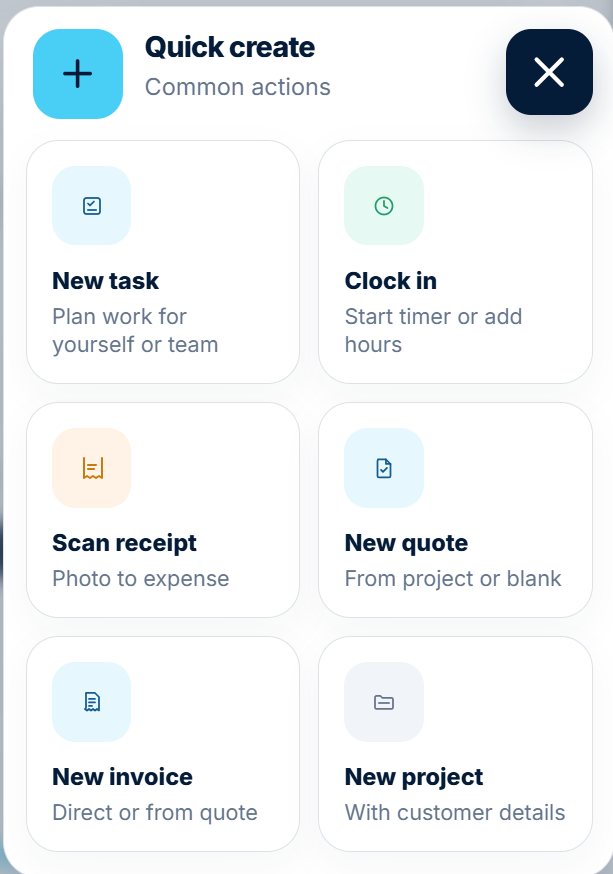
From the Quick Create menu, you can:
- New Task – Create and assign work for yourself or your team.
- Clock In – Start a timer or log working hours.
- Scan Receipt – Capture a receipt or invoice and register it as an expense.
- New Quote – Create a quote from a project or start from scratch.
- New Invoice – Create an invoice directly or from an existing quote.
- New Project – Create a new project with customer details.
The Quick Create menu helps you perform common actions in just a few taps, no matter where you are in the app.
How do I open and close the Quick Create menu?
Tap the blue + button in the bottom right corner of the screen to open the Quick Create menu.
To close the menu, tap the X button in the top right corner of the panel, or simply tap anywhere outside the menu.
I tapped the + button but nothing was created. Is that a bug?
No. The + button only opens the Quick Create menu. It does not create or save anything by itself.
After opening the menu, select the action you want to perform, such as New Project, New Task, New Quote, or New Invoice. A form will then open where you can enter the required information.
Nothing is created or saved until you complete the form and select Save.
Projects
How do I create a new project?
Projects are the foundation of your work in Ordops. Tasks, hours, quotes, invoices, and expenses can all be linked to a project.
To create a project:
- Tap the floating + button and select New Project, or open Projects and select New Project.
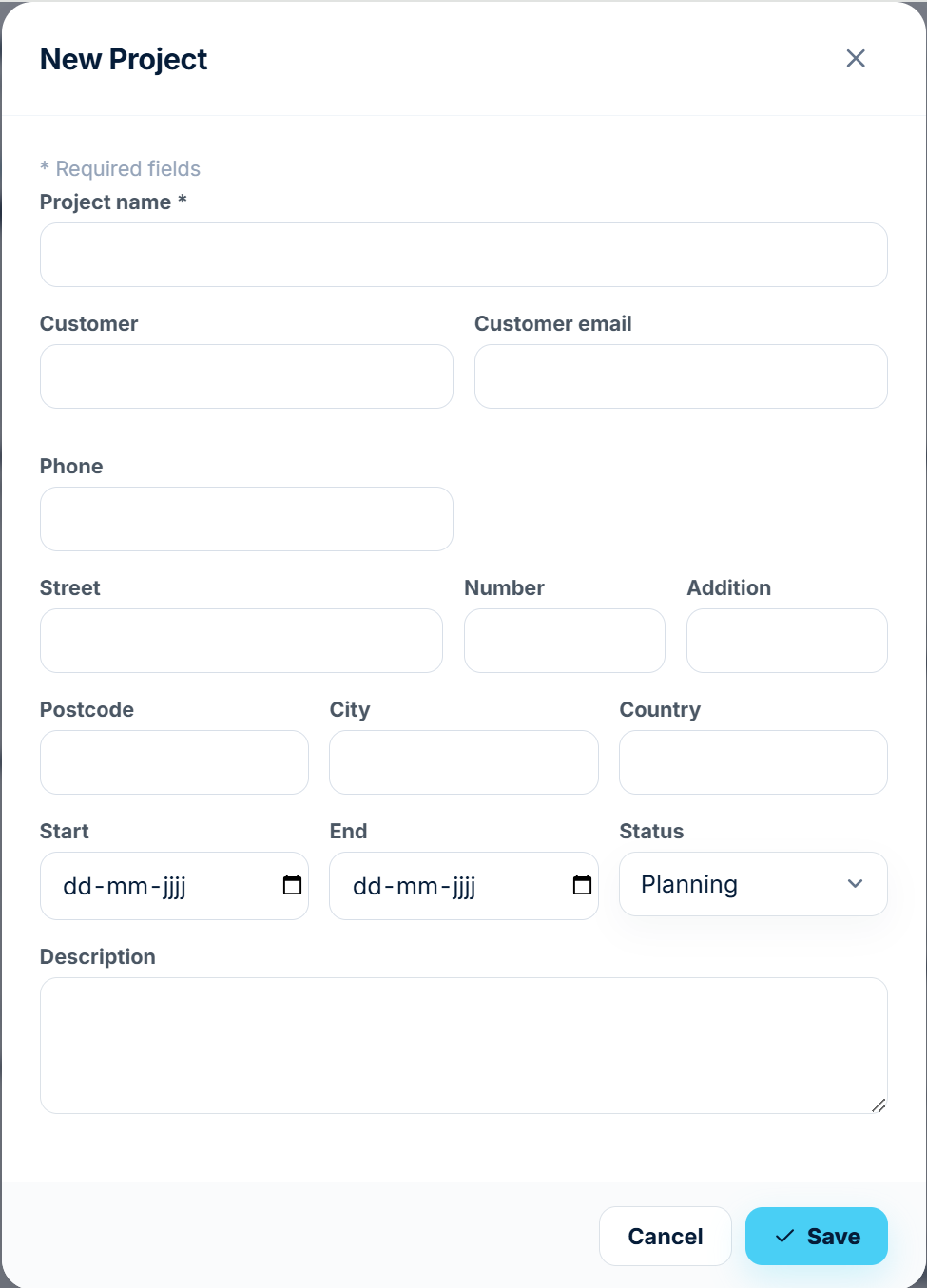
- Enter a Project Name (required).
- Optionally add customer details, including:
- Customer name
- Email address
- Phone number
- Address
- Start and end dates
- Project status
- Select Save.
A "Saved!" confirmation message will appear once the project has been created successfully.
- Only the Project Name field is required. All other information can be added later.
What statuses can a project have?
Projects can be assigned one of the following statuses:
- Draft – The project is being prepared and is not yet ready for execution.
- Offered – A quote has been sent to the customer and is awaiting approval.
- Planning (default) – The project is being scheduled and prepared.
- In Progress – Work on the project has started.
- Completed – All work has been finished.
- Cancelled – The project has been stopped and will not proceed.
The project status helps you track progress from initial planning through completion.
What does the project detail page show?
The project detail page brings everything related to a project together in one place.
At the top, you can view a financial summary showing:
- Revenue
- Costs
- Profit
You can also see the project's schedule and customer information.
The page includes dedicated tabs for:
- Overview
- Tasks (including the number of tasks, for example: Tasks (1))
- Quotes
- Invoices
- Hours
- Expenses
This gives you a complete overview of the project's progress, finances, documents, and work activities from a single screen.
How do I edit a project?
Open the project from the Projects list and tap Edit at the top of the project details page.
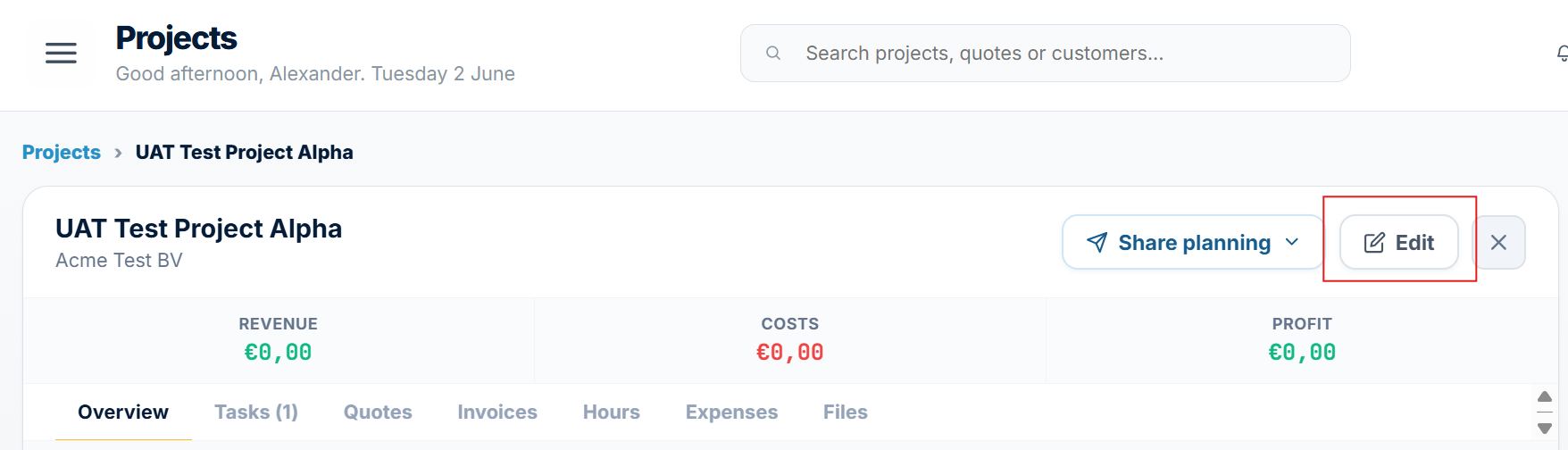 You can update the project name, customer information, contact details, dates, status, and other project settings.
After making your changes, select Save to update the project.
Resource board
How does the resource board work?
The Resource Board is a marketplace for construction and trade professionals to find extra work or outsource jobs when they are at capacity. There are no middlemen: companies and contractors connect directly through Ordops.
Available jobs are shown as clear listings with information such as location, estimated hours, rate, number of people required and the number of responses.
It works in three steps:
1. Set your preferences
Choose your trade, working region and preferred rate so Ordops can show you relevant opportunities.
2. Find or post work
Browse available jobs and respond to opportunities, or publish your own work when you need additional capacity.
3. Manage the work
Once you have found the right match, you can manage the project and track the work directly in Ordops.
How do I post my own job?
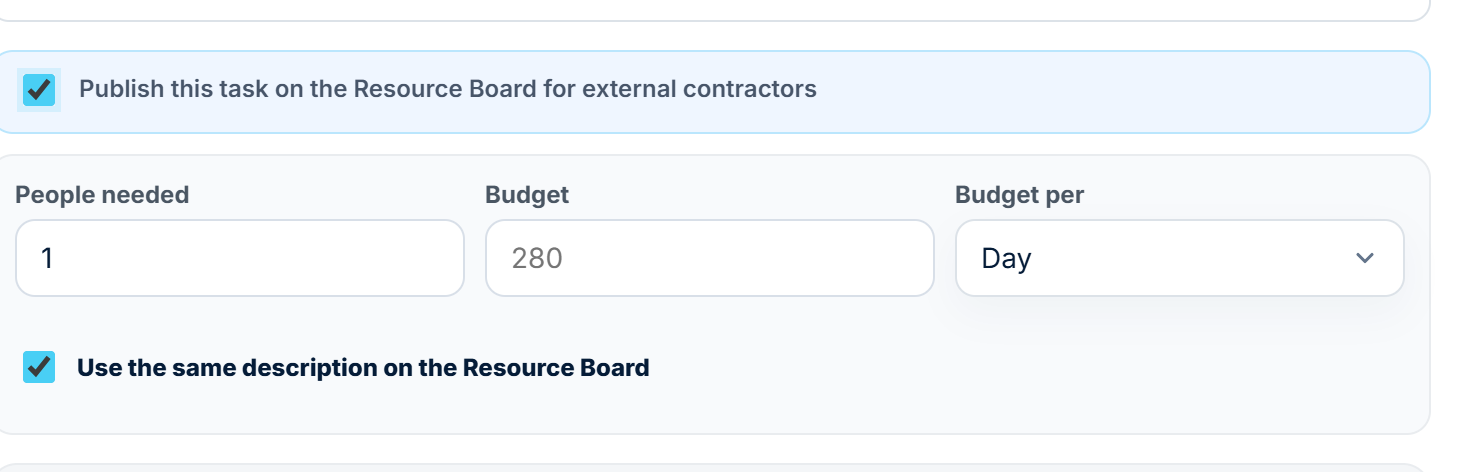
Open Tasks and tap New Task. Enter the job details, then enable Publish this task on the Resource Board for external contractors.
Select the number of people required and specify the available budget as an hourly rate, daily rate, or fixed total amount.
Save the task to publish it on the Resource Board, where external contractors can view and apply for the job.
What information is on a job card?
Location, estimated hours, day rate, number of people needed, and how many contractors have reacted. Tap Edit to edit your own posting.
Supplier
What is the Supplier Price module?
This is where you manage the purchase prices of all your suppliers in one place. For each product you see this year's price next to last year's, the percentage increase, and what that means for your customer price after margin.
How do I add a new supplier?
Click + Supplier in the top right, fill in the company details (name, city, Chamber of Commerce number) and then import the price list.
How does the price list import work?
For each supplier you can see when the last import happened (e.g. "Import: Apr 22, 2026"). Upload a new price list (CSV or Excel) and Ordops automatically matches the products by supplier code. Last year's prices are kept for comparison.
What does the Δ% column mean?
That's the percentage difference between the current price and the last year price. Green/black is a normal increase, red with an orange exclamation mark means an increase above your set threshold (default >10%).
How do I set the price increase warning?
In the top right, next to the search bar, there's a ⚠ > 10% field. Adjust this percentage to determine from what increase a product gets flagged.
Can I adjust the default margin?
Yes, via the Margin 30% field in the top right. This automatically updates the customer price for all products in the table. You can also override the margin per product.
How do I filter by category or supplier?
Use the All categories dropdown, or click a supplier in the left-hand column to see only their products. The search bar works on name, SKU, and supplier at the same time.
Do my quotes automatically use these purchase prices?
Yes. As soon as you add a product from the Supplier list to a quote, the customer price (purchase price + margin) is automatically suggested. You can still adjust it per line.
Tasks
How do I create a task and assign it to a team member?
Tasks are always linked to a project and can be used to plan work, assign team members, schedule activities, and track progress.
There are three ways to create a task:
- Tap the floating + button and select New Task
- Open a project and create a task from the Tasks tab
- Open the Tasks module and select New Task
Create the task
- Select the Project (required).
- Enter the Task Name.
- Optionally add:
- Trade or work category
- Status
- Description
- Work area
- Checklist items
Assign team members
- Scroll to the Assignees section.
- Select Add Team Member.
- Search for and select one or more team members.
- Selected team members will appear as assignees on the task.
Schedule the task
- Set the planned date and time.
- The Team Availability section automatically checks each selected team member's availability.
- Team members are shown as:
- Available when no scheduling conflicts exist.
- Busy when they already have work planned during the selected time.
You can also see whether availability is based on:
- Connected personal calendar (for example Outlook)
- Ordops calendar only
This helps you understand whether the availability check includes personal appointments or only work scheduled in Ordops.
Save the task
Select Save to create the task.
Once created, the task appears:
- In the project's Tasks tab
- In the assigned team members' Planning calendar
- In the Tasks module
- The task card displays key information at a glance, including the number of assigned team members, accepted assignments, scheduled date and time, and task status. Selecting the task opens the full task details screen where you can view and update all task information.
Can I assign more than one person to a task?
Yes. The team member selector supports multiple selections.
Each selected team member is added as a separate chip, and the selector displays the number of assigned people, for example Add Team Members (1).
You can continue selecting additional team members until everyone required for the task has been assigned.
How does the availability check work?
Once you set a date and time for a task, Ordops automatically checks the availability of the selected team members.
Each person will be shown as:
- Available – No scheduling conflicts were found.
- Busy – The person already has work planned during the selected time period.
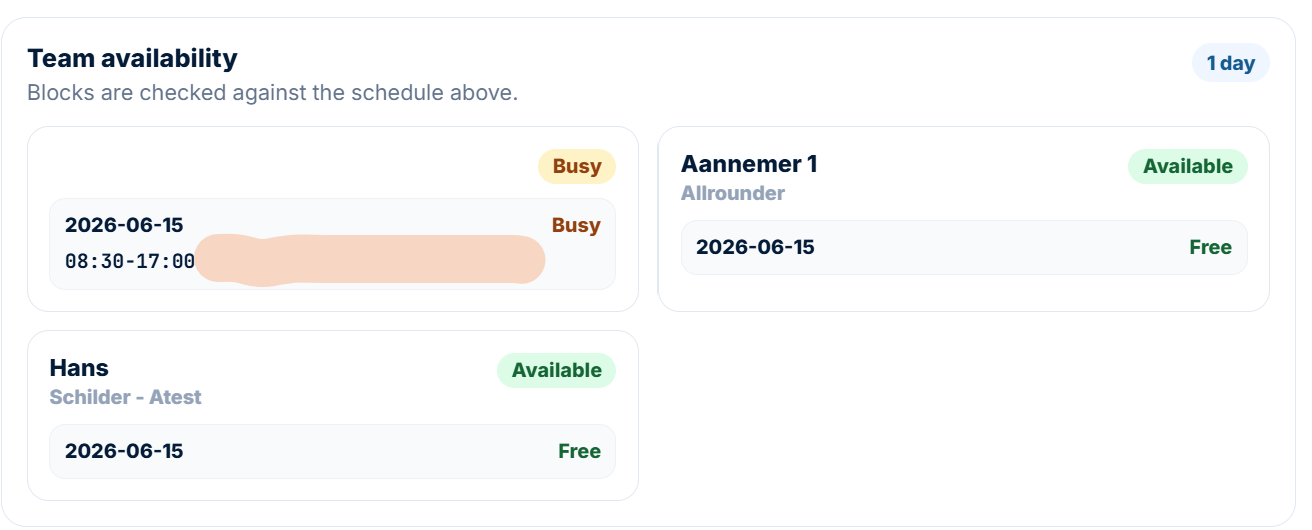
When a conflict exists, the overlapping schedule entry is displayed so you can see what is causing the clash.
Availability is calculated based on the date and time entered in the task schedule, helping you avoid double-booking team members.
What scheduling options are there?
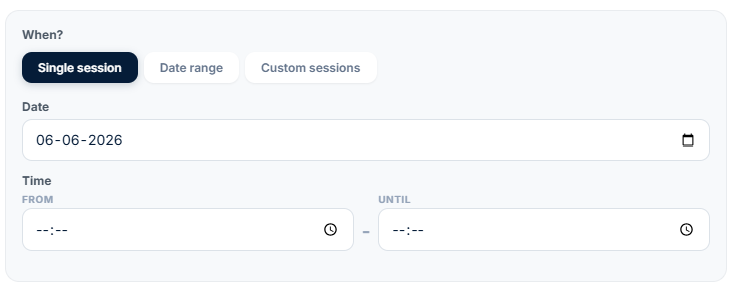
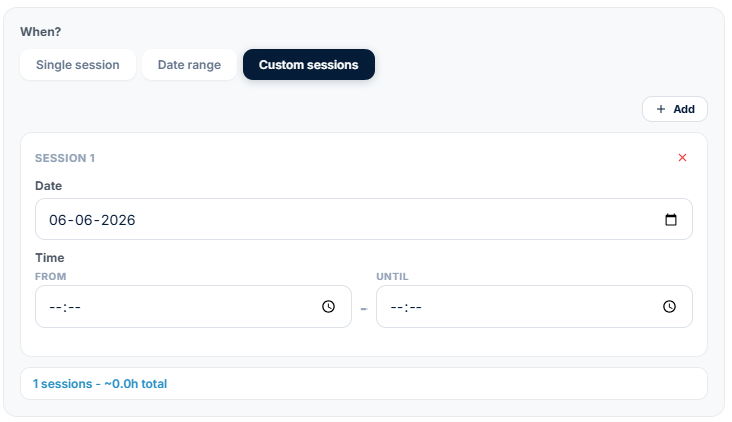
When creating a task, the When? section offers three scheduling options:
Single Session
Use this option for a one-time task.
- Select a date
- Enter a From and Until time
- Ordops automatically calculates the duration
This is ideal for jobs that can be completed in a single visit.
Date Range
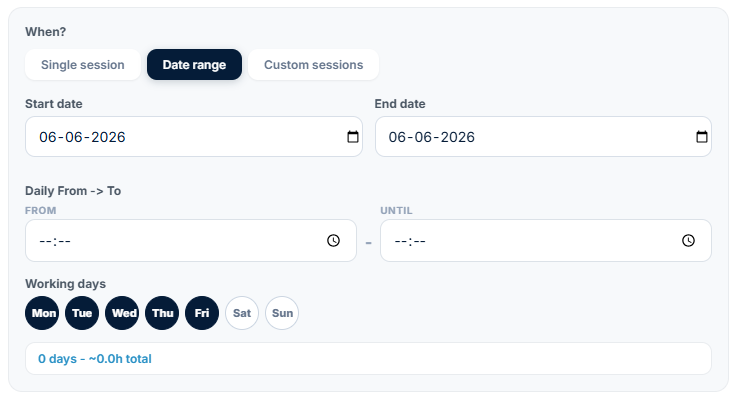
Use this option for work that spans multiple days.
- Select a start date and end date
- Define daily working hours
- Choose the working days (Monday through Sunday)
- Ordops automatically calculates the total planned hours across the selected period
This is useful for larger projects that run over several days or weeks.
Custom Sessions
Use this option when the work schedule is irregular.
- Create multiple individual sessions
- Set a different date and time for each session
- Add or remove sessions as needed
- Ordops automatically calculates the total planned hours across all sessions
This option is ideal when work is spread across specific dates rather than following a continuous schedule.
Regardless of the scheduling method, the selected dates and times are used for team availability checks, helping you identify scheduling conflicts before assigning work.
Where do assigned tasks appear afterwards?
Once a task has been created and assigned, it appears in three places:
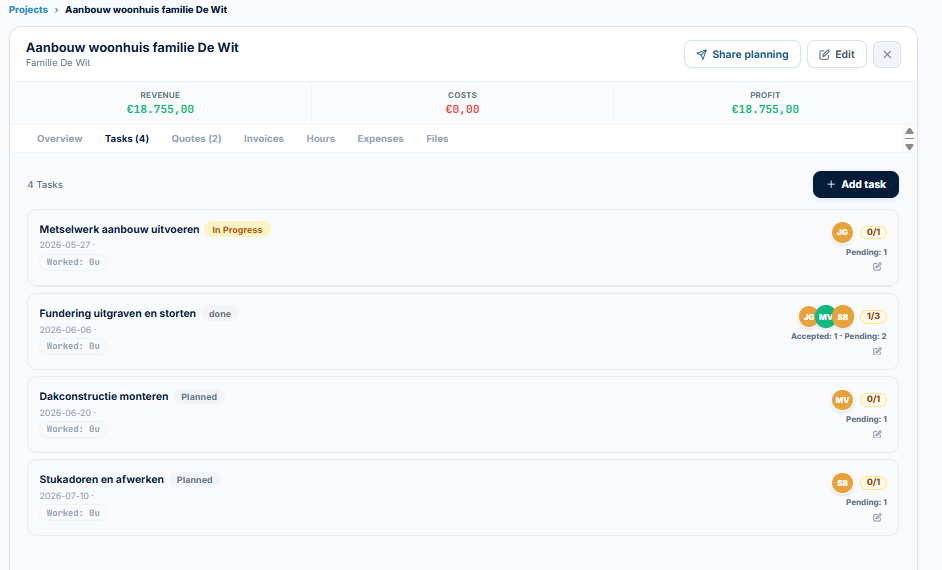
Project Tasks Tab
Open the related project and navigate to the Tasks tab. Here you can view task status, assigned team members, schedule, planned hours, and worked hours.
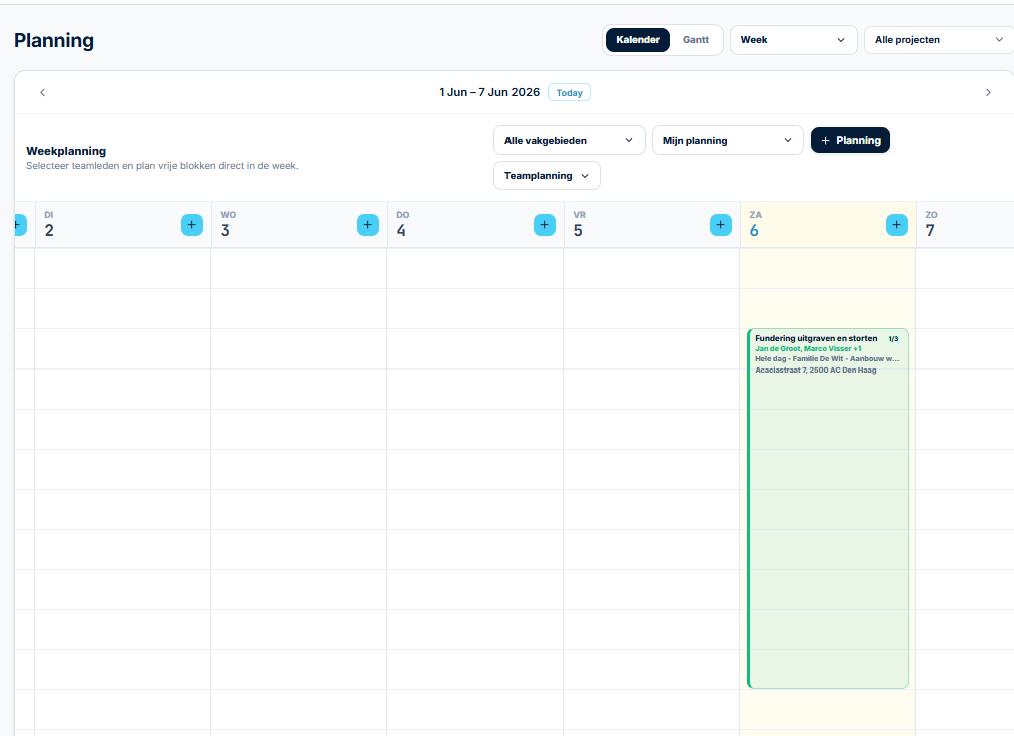
Planning
The task is added to the assigned team member's schedule and appears in Planning, helping you manage workloads and availability.
Tasks Module
The task also appears in the Tasks module, where you can view all tasks you have created or that have been assigned to you.

In all modules you can immediately see key information such as:
- Number of assigned team members
- Number of accepted assignments
- Scheduled date and time
- Task status
Clicking on a task opens the detailed task view, where you can see the full description, assigned team members, schedule, hours, status, notes, and other task-related information.
Troubleshooting
Why can I not save what I am creating?
Make sure all required fields marked with * have been completed.
For example:
- A project requires a project name.
- A task requires a project to be selected.
- Other forms may have additional mandatory fields.
Once all required information has been entered, select Save to create the item.
Why does the Save button not work?
Check that all required fields marked with * are completed. Scroll through the form to make sure nothing is missing.
Then tap Save once and wait for the "Saved!" confirmation message.
Why is a team member marked as Busy?
A Busy status means the selected team member already has work scheduled during the chosen date or time.
The availability check automatically warns you about scheduling conflicts to help avoid double bookings.
To continue, either:
- Select a different date or time, or
- Assign the work to a team member who is shown as Available.
You can also review the team member's schedule in Planning to see their existing assignments.
Why can I not find my new project or task?
First, confirm that you received the "Saved!" confirmation message after creating the project or task. If no confirmation appeared, the item may not have been saved.
For projects, check the Status filter on the Projects page and set it to All. Then refresh the list.
For tasks, open the related project and navigate to the Tasks tab, or review the Tasks module to find the newly created task.